The living room TV setup has three components: a Sony TV, a Chromecast with Google TV, and a Samsung Soundbar. Each has its own remote. Here's how to get everything working.
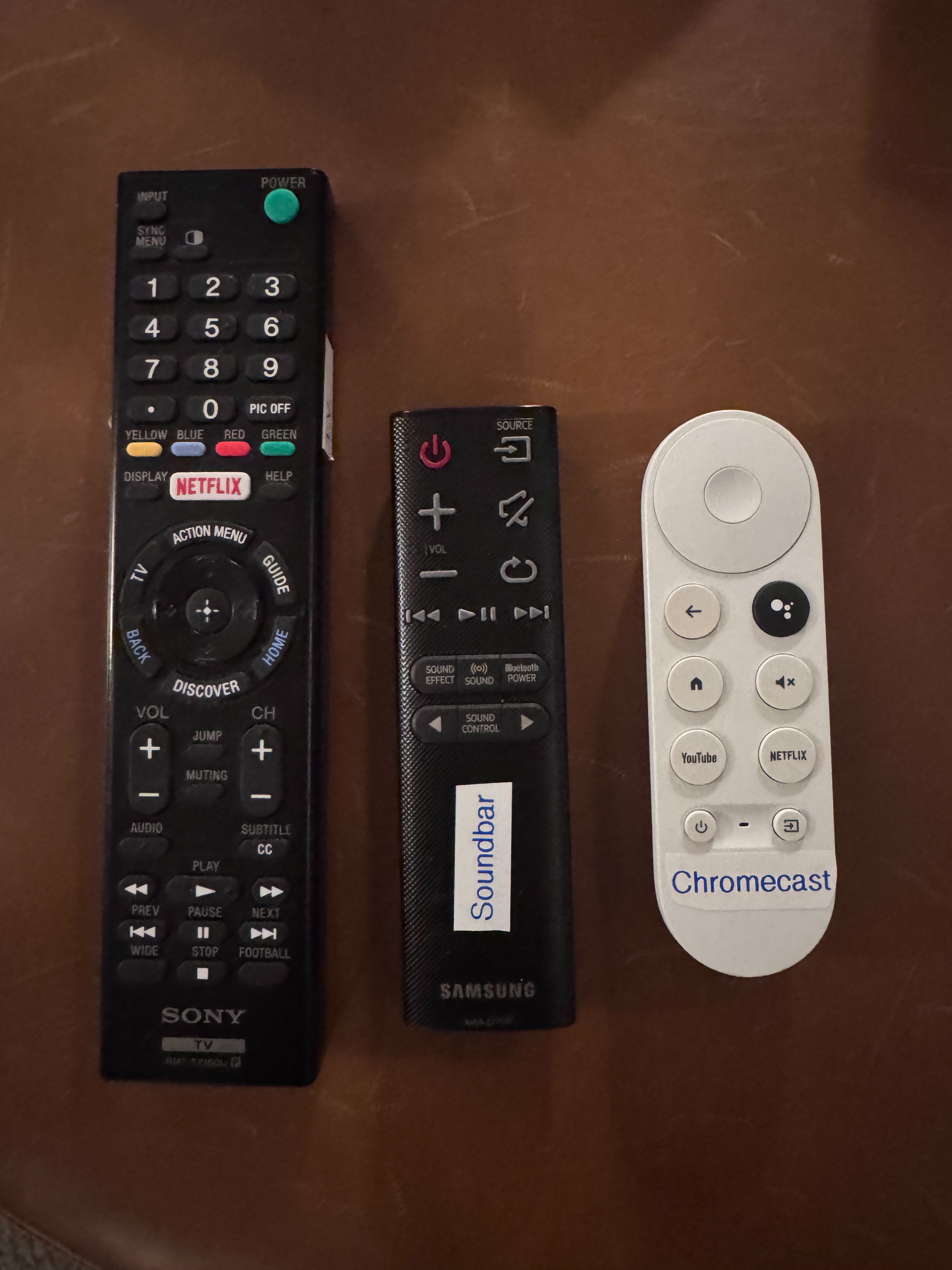
From left to right: Sony TV remote, Samsung Soundbar remote, Chromecast remote
Turning On the TV
Just press the Power button on the Sony TV remote (top-right corner, green button). The TV will take a few seconds to turn on, and both the Samsung Soundbar and the Chromecast will power on automatically with it. You should see the Google TV home screen after a moment.
Chromecast not showing up?
If the Chromecast doesn't start automatically when the TV turns on, just press the Home button on the Chromecast remote to wake it up.
About the Sony TV's built-in apps
The Sony TV is a smart TV with its own apps, but we recommend using the Chromecast instead — it's much faster and easier to navigate.
Volume Control
All audio goes through the Samsung Soundbar. Use the Chromecast remote to control the volume — the volume up/down and mute buttons are on the right side of the remote.
The Samsung Soundbar remote also has volume controls (+ / − buttons on the top, mute at the top-right), but you shouldn't need it if everything is running smoothly. The Sony TV remote has volume buttons too, but those control the TV's built-in speakers which are not in use.
Chromecast & Streaming
The white Chromecast remote is your main remote for navigating streaming apps. It has a simple layout:
- Circle pad — Swipe or press the edges to navigate, press the center to select.
- Back arrow — Go back one screen.
- Home button — Return to the Google TV home screen.
- YouTube / Netflix buttons — Quick launch shortcuts.
- Volume & mute — On the right side of the remote. Controls the soundbar volume directly.
The Chromecast is reset between every visitor, so you'll need to sign in to your own streaming accounts. Here's how:
- From the Google TV home screen, open the streaming app you want (Netflix, Hulu, Disney+, etc.).
- Select Sign In and follow the on-screen prompts.
- Most apps will give you an activation code and a URL to visit on your phone or laptop — this is the easiest way to sign in without typing passwords with the remote.
Privacy note
The Chromecast is factory reset after every guest, so your streaming accounts and personal data will be completely removed after your stay. Feel free to sign out of your accounts or reset the device yourself before you leave if you prefer.
NES & SNES Game Consoles
The NES and SNES are connected to the TV on different inputs. To switch to a game console:
- On the Sony TV remote, press the Input button (top-left corner of the remote).
- A list of inputs will appear on screen. Select the input for the console you want to play:
- HDMI 2 — SNES (Super Nintendo)
- Video — NES (Nintendo Entertainment System)
- Power on the console itself — the power switches are on the front of each unit.
- To switch back to the Chromecast, press Input again and select HDMI 1.
About the game library
Check out the Video Games page for the full list of NES, SNES, and arcade games available.